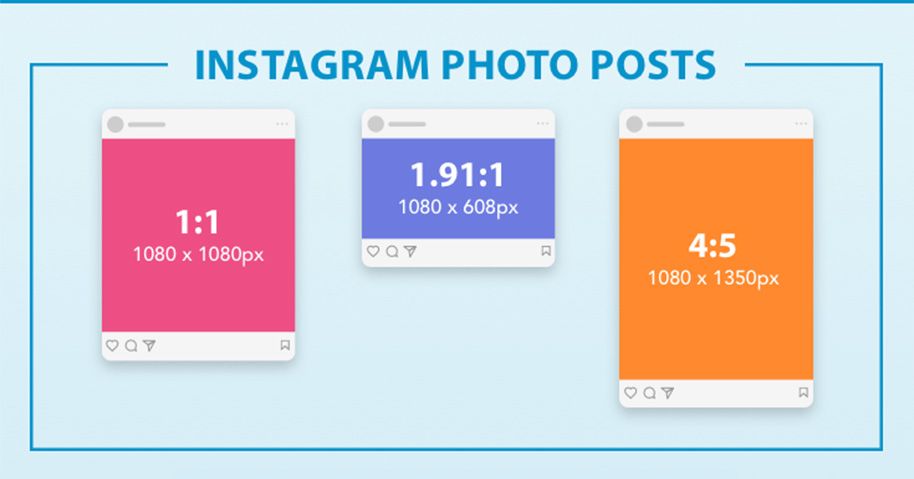
1.Press the crop tool
2.Select one of the three instagram acceptable ratios by choosing from the
3.menu options or typing it in. Personally, I keep my ratio on 4:5 because full
4.size photos are harder to scroll past.
5.Click and drag the photo into the position of your choice
6.Begin dragging the ends of the crop tool square to get the right about of body
into the frame.
7.Press Enter to finalize the crop, an you’ll see your photo with colored bars
where the empty space is.
8.Press the RECTANGULAR MARQUEE TOOL to create a selection of the left side
of your photo and drag from top to bottom
9.Press COMMAND C to copy the selection. Press COMMAND V to paste the
selection into a blank layer
10.Click on the selection to activate the MOVE TOOL
11.Drag the transformation control squares that are outlining the selection, and
drag one end over the empty space to extend the background.
12.Hit the checkmark up top to finalize the selection. You will not be able to do
anything in photoshop until you do.
13.Repeat steps #7-12 on the other